
A Simpler, Safer Computer for Your Loved Ones.
Looking after a parent? See if their computer is on, call and help from your phone.
GoldenProtect is a desktop app for Windows and macOS. Install it on your parent's PC and it turns the screen into a large clock and big tiles for only the websites you approve.
Plans from $10/month. See pricing
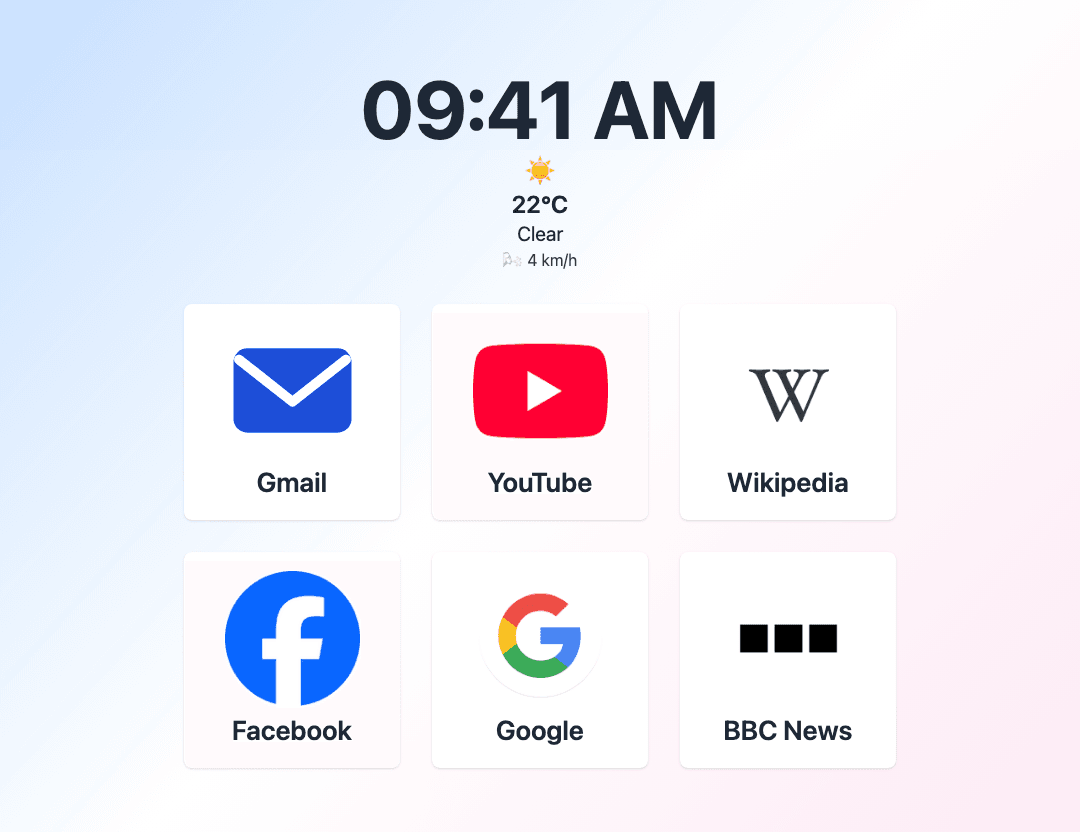
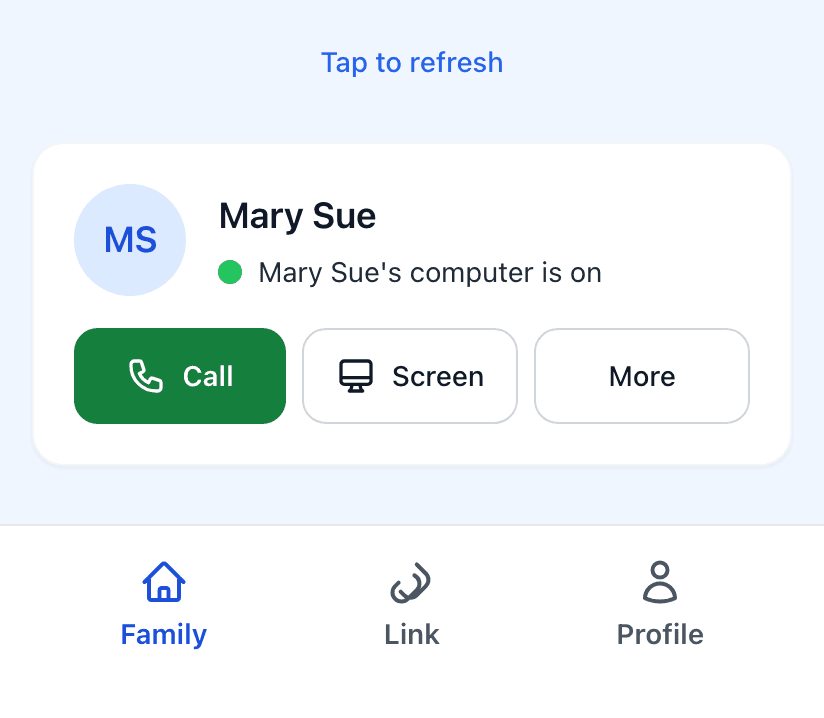
Real screens, example data: your parent's computer and your phone.
Questions? Get help
Two screens: calm for your parent, clear for you
Nothing extra to install on your phone. See both screens before you pay.
From your phone you can:
- See whether your parent’s computer is on right now
- When it is off, see when it was last on
- Call them by voice from your phone’s browser
- Look at their screen to see what they see, and help from afar
- They always see a banner while you are connected, with one big button to end it
Open the guardian page
Transparent, Fair Pricing.
All plans include every feature, with no hidden fees.
30-day money-back guarantee. Cancel anytime.
No free trial. You pay when you start, it renews each month or year until you cancel, and you can ask for your money back within 30 days. Billing and refund terms
Monthly
Single license · includes 1 license
Family Monthly
Best for families · includes 3 licenses
Just $5/license
Annual
Save with yearly billing · includes 1 license
Just $5.83/month
Your license key appears on your dashboard straight away.
After you pay
- Sign in with Google and pay securely with Stripe.
- Your license key appears on your dashboard straight away.
- Download GoldenProtect on your parent's computer and enter the key.
Every plan includes password protection. Updates included while you subscribe. Billing and refund terms
Your payment is taken by Stripe on behalf of RedPacific, LLC, the company that operates GoldenProtect, so that is the name to look for on your card statement.
Download GoldenProtect
Setup asks for your license key, which comes with a plan in the pricing section above.
Windows
Not sure? Most PCs are Intel/AMD. See how to check
Your computer may show a security prompt when you open the installer. Installation guide · Why it appears
Set-up takes one visit
- Step 1: Install GoldenProtect on your parent's computer
Download the file for your parent's computer and open it. Windows shows a blue "Windows protected your PC" box once: click More info, then Run anyway. On a Mac: Open GoldenProtect once, then close the warning without moving the app to the Trash. Then within an hour, open System Settings, Privacy & Security, scroll down and click Open Anyway. Enter the Mac's password and click OK.
- Step 2: Enter your license key there
Paste the key from your dashboard, then choose the guardian password and about six websites.
- Step 3: Type the link code on that computer
Sign in here as the guardian, confirm the email the plan was bought with, and type the 6-digit link code you are shown into the app.
Not sure which file your parent's computer needs? We show you how.
See which file to pickEverything they need, nothing they don't.
Simple and focused
A large clock and big buttons for only the websites you approve.
You are in charge
Add or remove sites and change settings behind your guardian password.
Nothing to get locked out of
Your parent cannot change the computer or website passwords by accident.
More detail: Questions and answers · Setup guide

Why we built GoldenProtect
We watched our own grandfather struggle with the complexities of modern computers and built a simpler, safer way for him to stay connected.
Our mission and who we areSee if your parent’s computer is on, from your phone
Install GoldenProtect on their computer, then check in from any phone.
No free trial. You pay when you start, it renews each month or year until you cancel, and you can ask for your money back within 30 days. Billing and refund terms